How to Preview Vinyl Wrap on Your Car
CarRim Engineering Team · Automotive computer-vision and rendering engineers behind CarRim Studio (Web & iOS)Last updated:
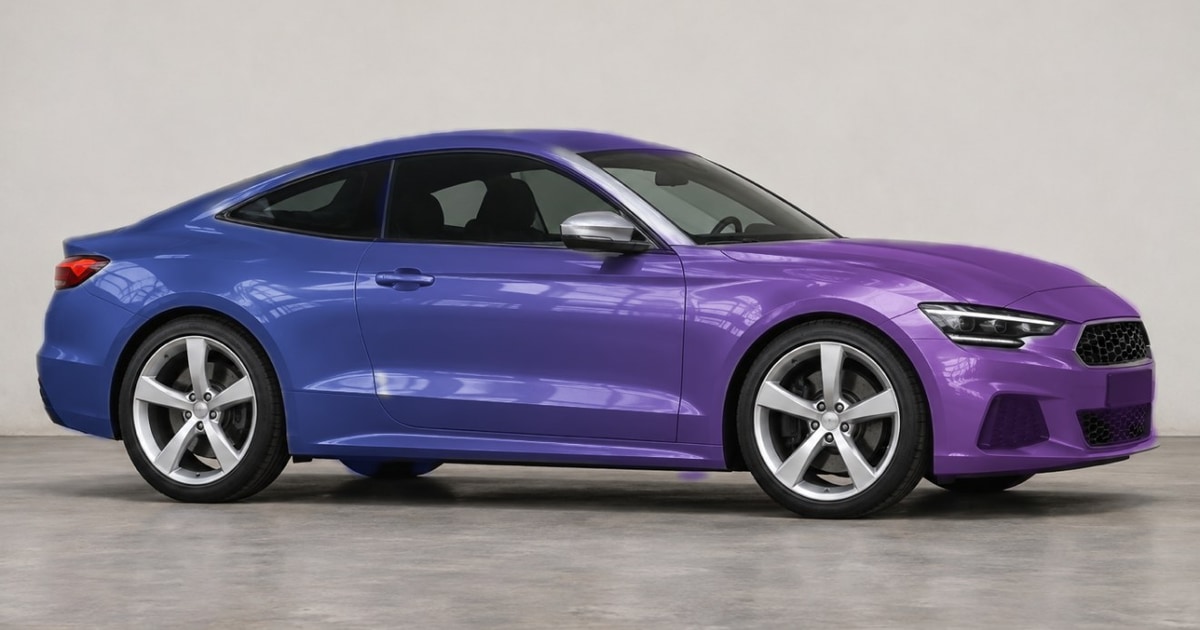
To preview a vinyl wrap on your own car before paying for installation, load an evenly lit daylight photo into CarRim Studio, let local browser AI segment the body panels on-device, and compare gloss, satin, matte, and metallic finishes side-by-side.
Which car photo gives the most accurate vinyl wrap color preview?
Direct noon glare blows out highlights, while dim garages hide metallic flake and color depth. The most faithful wrap preview starts with a clean photo taken in open shade or soft overcast daylight.
- Stand 4–6 meters back at headlight height to minimize wide-angle lens distortion.
- Shoot a clean side profile or 3/4 front angle with clean, dry body panels.
- Keep resolution at least 1200px wide (up to 4096px supported for clean 4K exports) in JPG, PNG, or WebP.
Key takeaway: soft daylight photography produces accurate gloss-vs-satin comparisons that closely match real vinyl swatch books.
How do you compare satin, matte, metallic, and textured wraps step by step?
Open CarRim Studio and upload your photo—local ONNX segmentation keeps your image on-device during preview. Then test your shortlist systematically instead of eyeballing colors one by one.
- 1. Lock the body mask first: inspect window trim, grille, badges, and mirror caps using Show Selection and the feathered eraser.
- 2. Compare finishes at the same hue: switch the same hex color across Solid, Metallic, Satin, Matte, and Pearlescent while adjusting Gloss and Contrast.
- 3. Test specialty films: browse 8 gradient presets, 18 built-in + 18 cloud textures (such as carbon weave, brushed titanium, or aurora pearl), or layer up to 8 body graphics.
- 4. Use Compare Original and export up to 3 clean 4K images free on your first saved build to share exact visuals with your wrap installer.
| Wrap Decision Question | What to Check in Studio |
|---|---|
| Satin vs Gloss Black | Toggle Satin vs Metallic at #141518 to see how shoulder lines read |
| Bold Color on Daily Driver | Check contrast against factory black trim, glass tint, and existing wheels |
| Two-Tone or Graphic Accent | Test 8 gradient directions or 16 graphic presets with body-lighting blend |
| Installer Communication | Export clean 4K image + note finish type (Gloss/Satin/Matte) and hex reference |
Therefore, bringing 2–3 clean 4K previews on your actual car prevents expensive color regret once a full wrap roll is ordered.
Frequently asked questions
Does digital wrap preview match a physical vinyl swatch 100%?
Screen brightness and ambient photo lighting affect exact shade perception. Use CarRim Studio to narrow down color family, finish sheen (gloss vs satin vs matte), and wheel contrast, then verify final color against a physical vinyl sample outdoors.
Do I have to upload my license plate or private car photo to a cloud server just to test colors?
No. Local browser ONNX recognition and live wrap previews keep your photo on your own device unless you choose to save a cloud build or run a clean 4K export.
Ready to spec your build in full 4K?
Open CarRim Studio